


 268
268
To log in on a personal device that is not managed by SIS IT, an authentication code must be entered. We recommend using the Microsoft Authenticator app on a smartphone, as it also allows secure access while on the go.
If installing the Microsoft Authenticator app is not possible, or if students do not have access to their own smartphone, we recommend using an alternative authentication app as described here.
If you have any questions regarding the installation, please contact the local IT support team at your school location.
How to install the authenticator in just a few simple steps.
A ) Pre‑registration:
Go to myprofile.microsoft.com.
Choose “Security info” → “Add sign‑in method”.
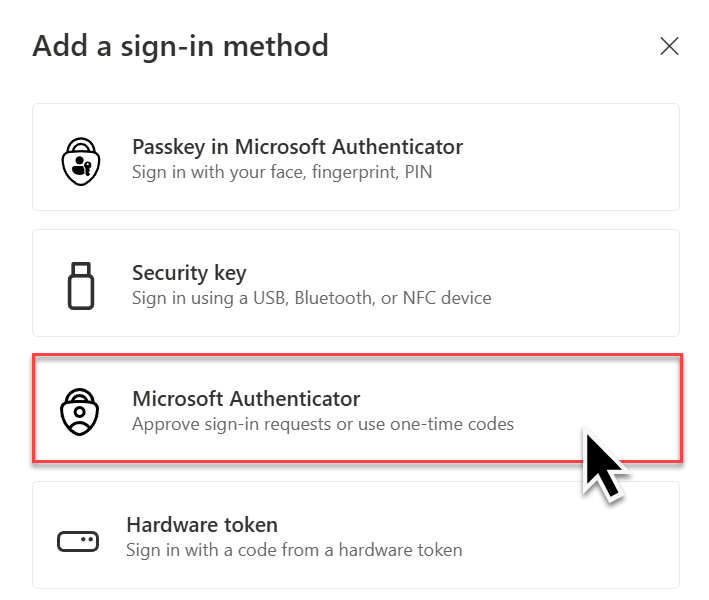
B) Download " Proton Authenticator "
Download and install Proton Authenticator-App on your device
Windows or Apple Mac OS
https://proton.me/de/authenticator/download
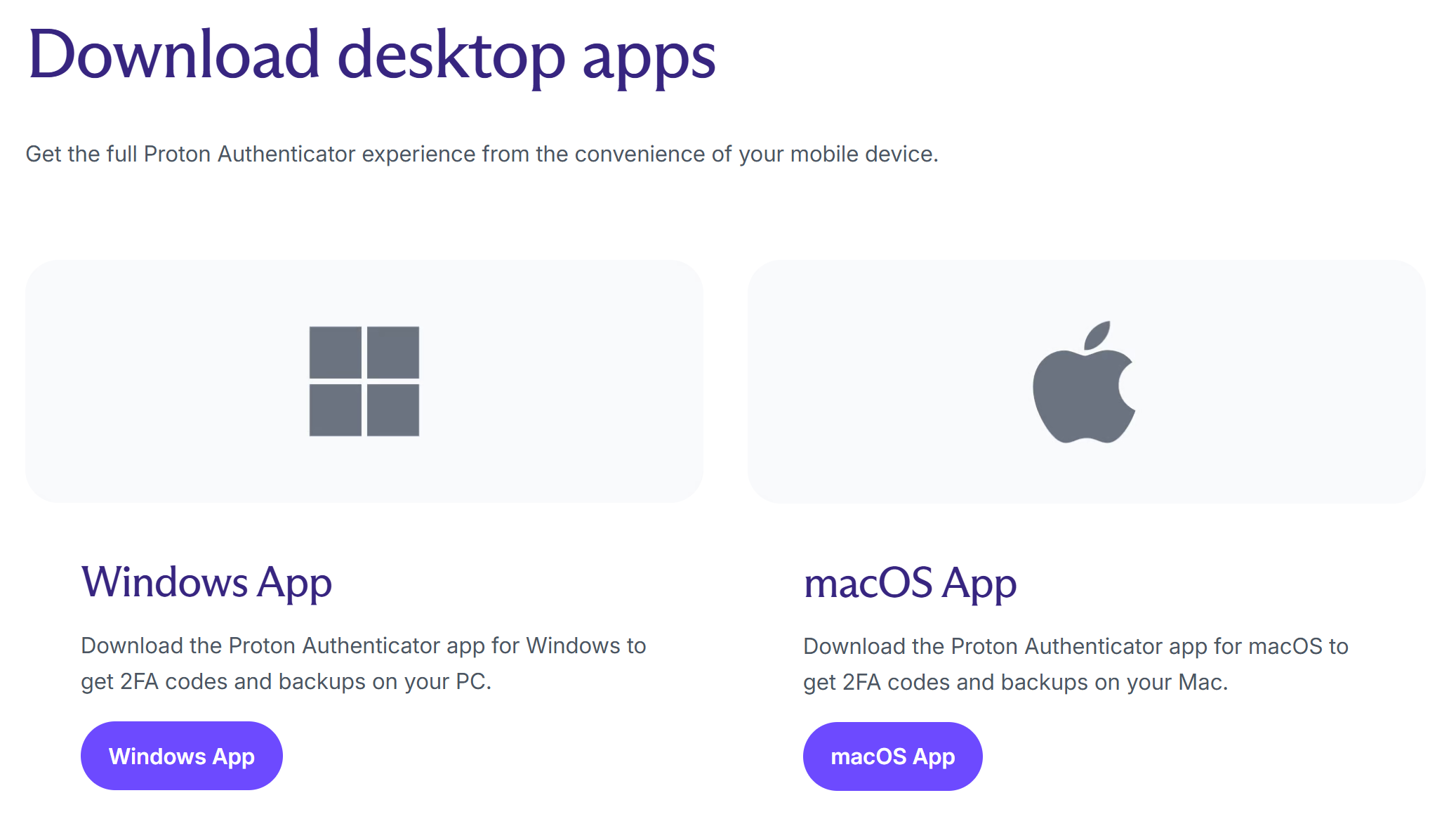
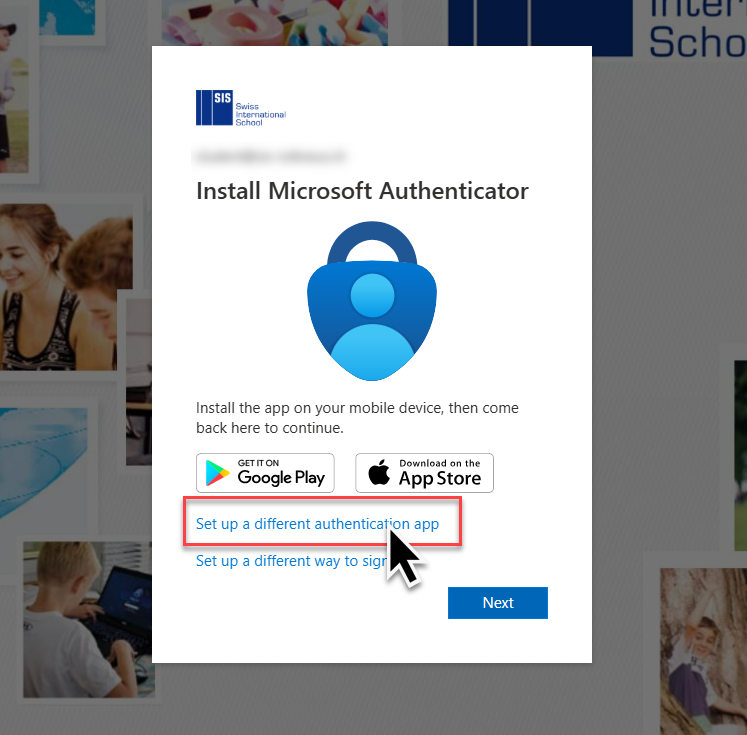
C) Set up Proton Authenticator
Choose “set up different authenticator app”.
Choose “Can't scan the QR Code”.
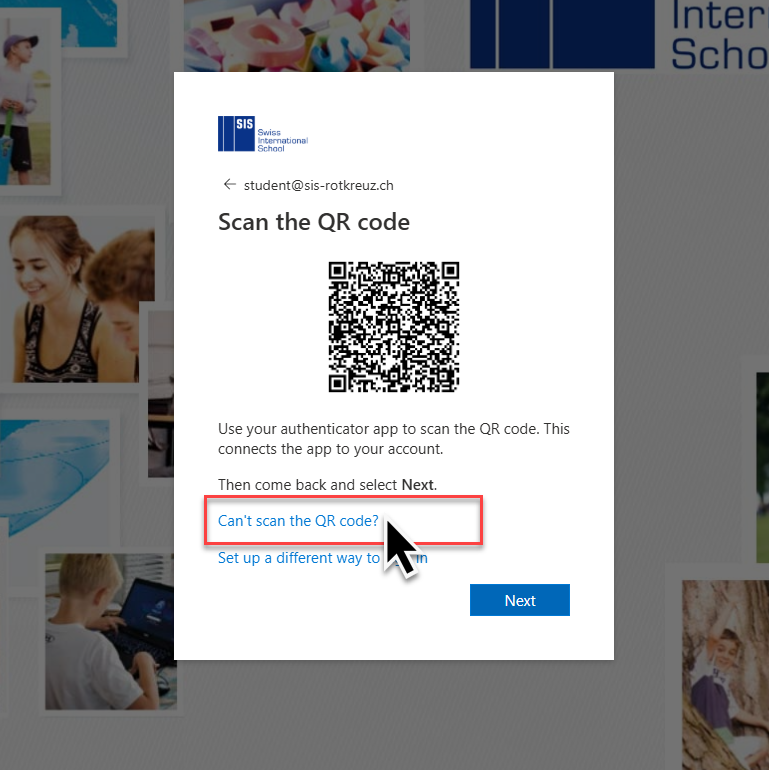
D) Set up your SIS account in app
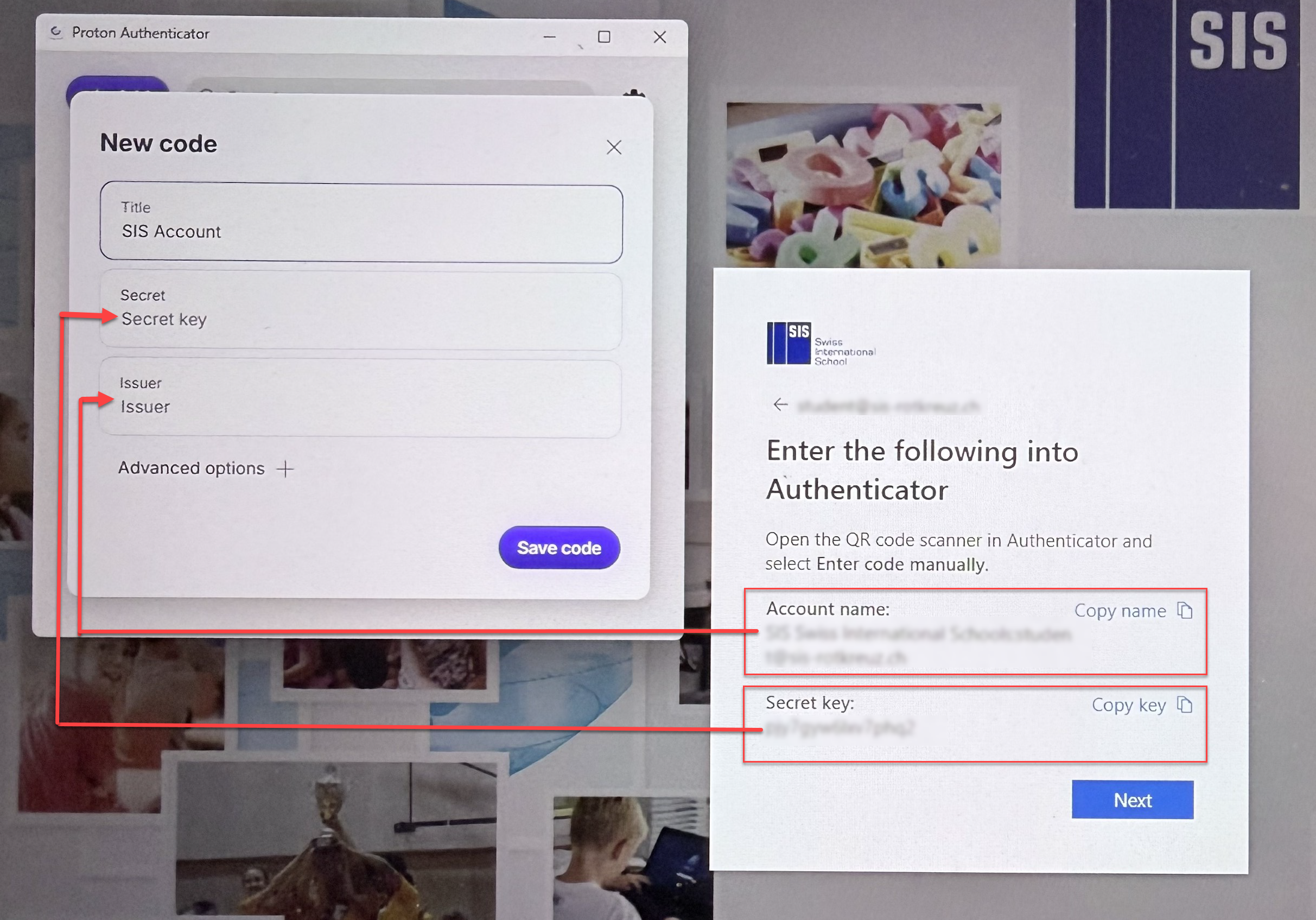
Set up your "Account Name "SIS Account of ..."
Copy "Secret Key" and "Issuer" into Authenticator App
Click "Next"
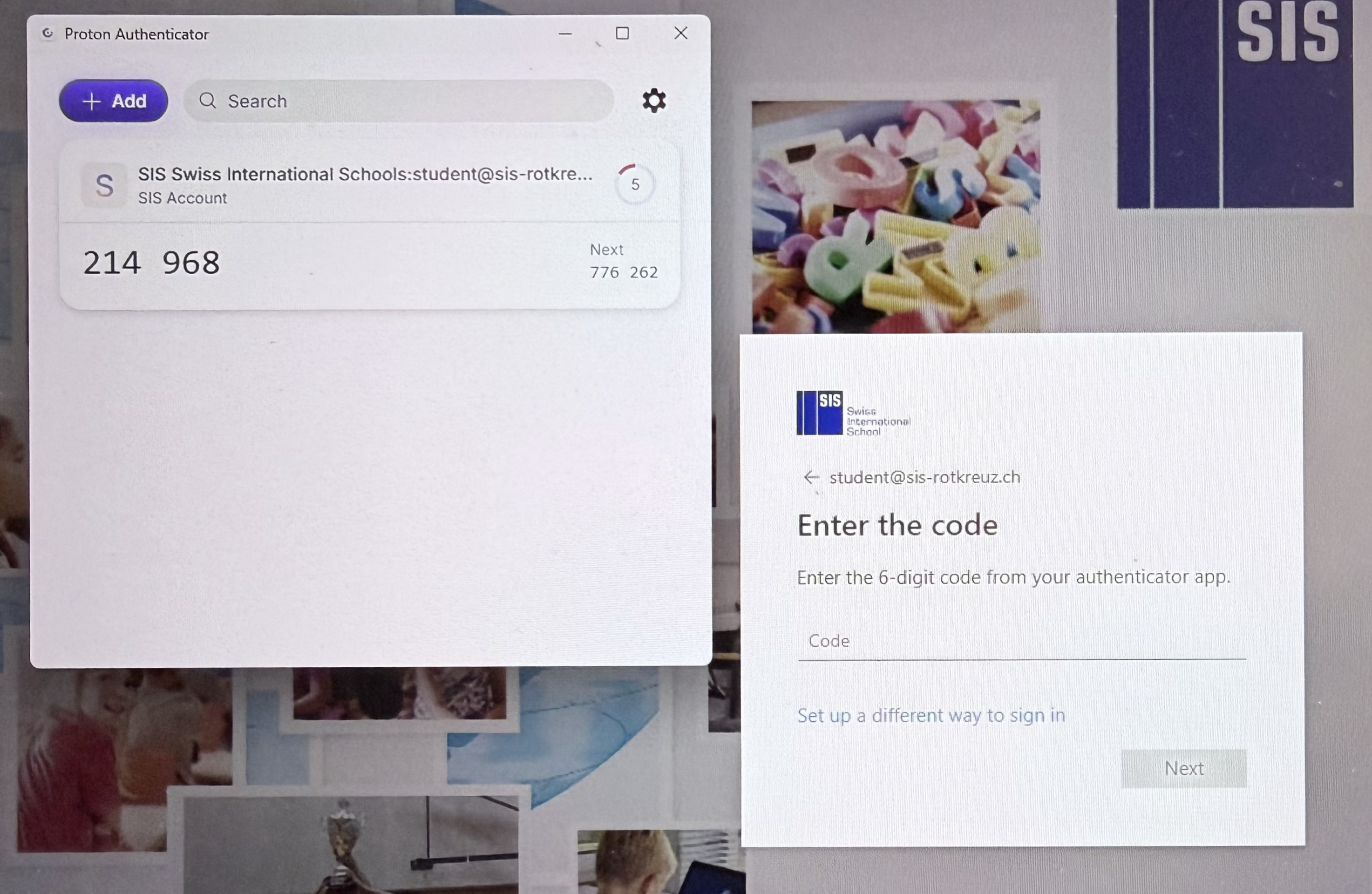
Enter the Code into your Browser and click "Next"
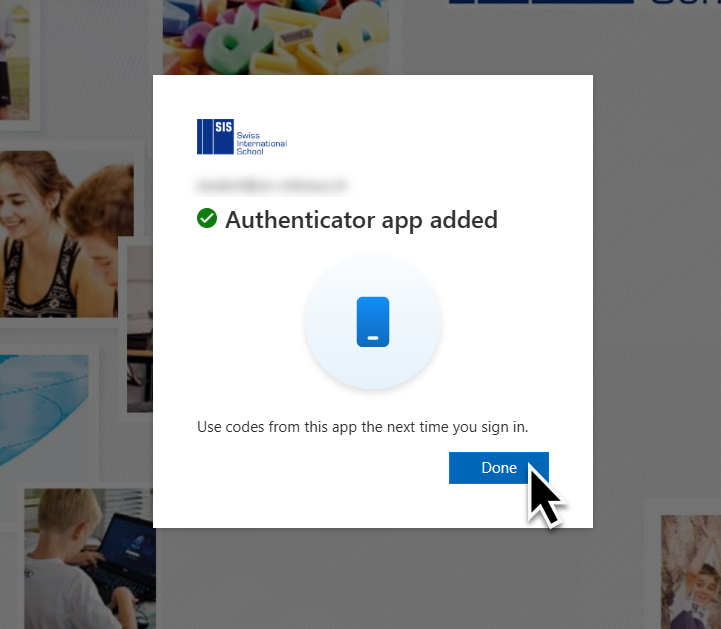
Done !! Authentication app added – if you need to confirm your login on your personal device, you can use this app.
Thank you for using two-factor authentication on your personal devices and helping to keep the SIS environment secure.
For more information check out:

