


 1741
1741
How to install the authenticator in just a few simple steps.
A ) Pre‑registration:
Go to myprofile.microsoft.com.
Choose “Security info” → “Add sign‑in method”.
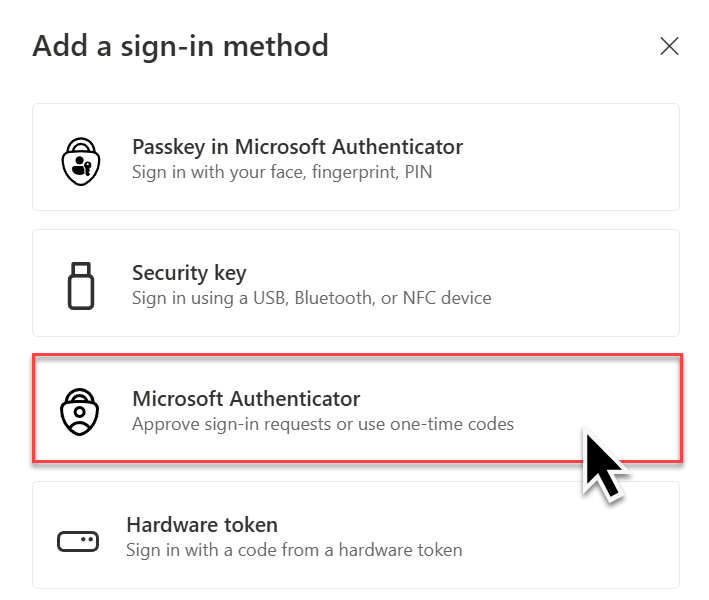
B) Download Microsoft Authenticator
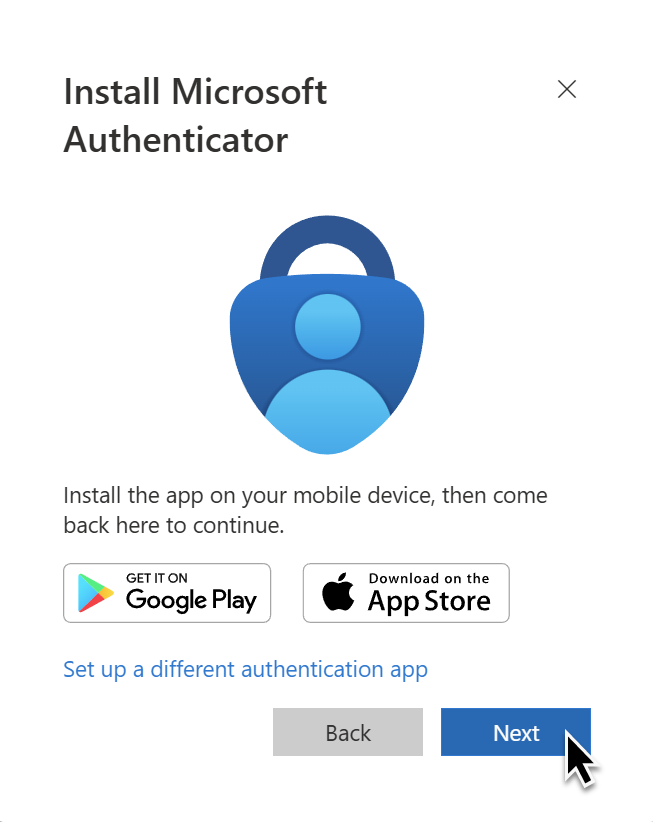
from the App Store/Play Store. Then confirm with Next.
|
|
|




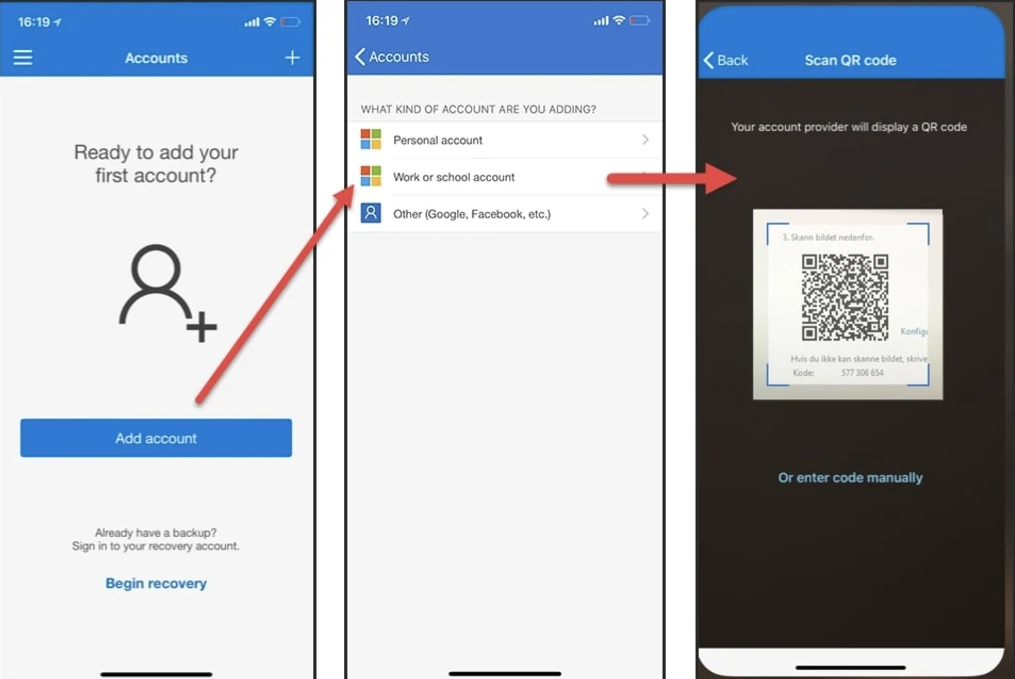
C) Select Work or School Account --> Scan a QR code --> next
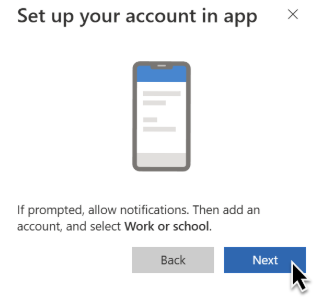
D) Set up your SIS account in app
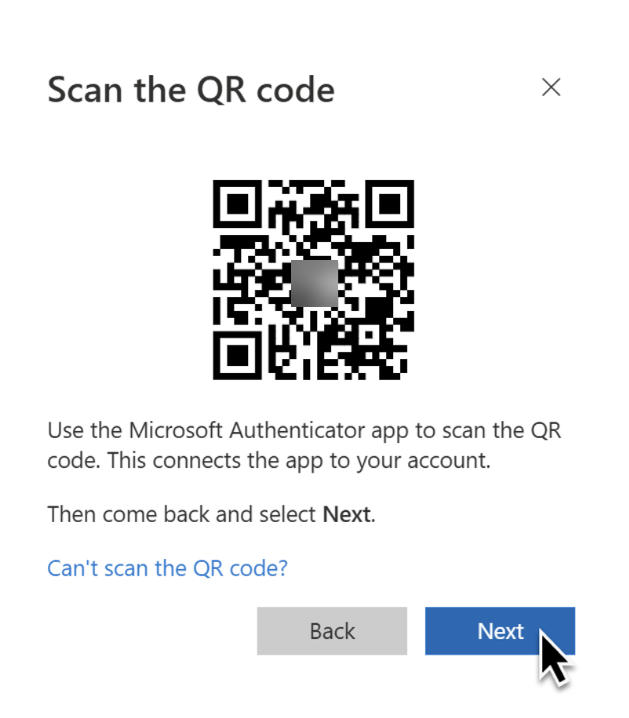
E) Scan the on‑screen QR code.
--> The account is added. Click Next.
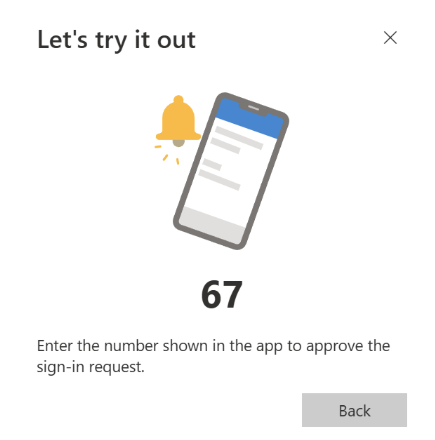
F) Test: A pop‑up appears on your phone. Enter the number shown on screen (e.g., 67).
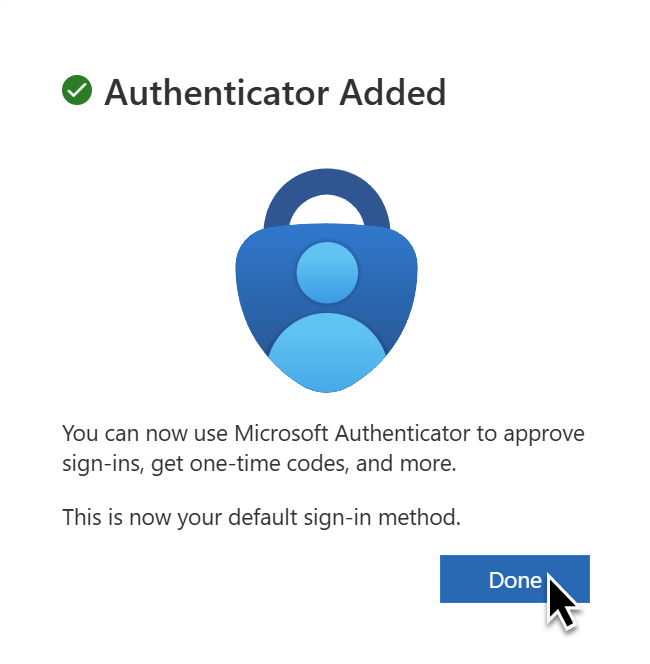
G) The second authentication method has been added successfully.
Thank you for using two-factor authentication on your personal devices and helping to keep the SIS environment secure.
More Information about Conditional Access:
--> Frequently Asked Questions: FAQ MFA <--
--> Introduction of Multi-Factor Authentication (MFA) <--

